Command Line Interface
ES is the command-line interface for searching
Everything from a command prompt or PowerShell.
Download
Requirements
Usage
Search options
Sort options
Display options
Journal options
Export options
General options
Bookmarks and filters
Exit codes
Examples
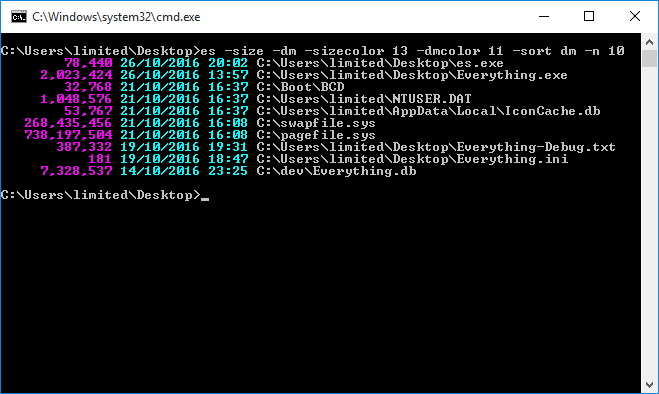
Download
Download
ES from the
Downloads page.
Requirements
- Everything must be installed and running.
Usage
es.exe [options] search text
- options
- Optional switches that change search behavior, sorting, or output formatting.
- search text
- Optional search query using the Everything search syntax.
For example:
es.exe -highlight Everything ext:exe;ini
Switches can start with either a dash (
-) or forward slash (
/)
For example:
/highlight is the same as
-highlight
Dashes (
-) inside switches can be omitted.
For example:
-nodigitgrouping is the same as
-no-digit-grouping
Use double quotes (
") to escape spaces and switches.
Switches can be disabled by prefixing them with
no-
For example:
-no-size disables
-size
Use
^ to escape
\,
&,
|,
>,
<, and
^ in a command prompt.
Search options
- -r <search>
- -regex <search>
- Search using a regular expression.
- -i
- -case
- Enable case-sensitive matching.
- -w
- -ww
- -whole-word
- -whole-words
- Match whole words only.
- -p
- -match-path
- Match against the full path.
- -a
- -diacritics
- Enable diacritics matching.
- -prefix
- Match the start of words.
- -suffix
- Match the end of words.
- -ignore-punctuation
- Ignore punctuation in filenames.
- -ignore-whitespace
- Ignore whitespace in filenames.
- -n <num>
- -count <num>
- Limit the maximum number of results to <num>.
- -path <path>
- Search for files and folders within the specified path.
- -parent-path <path>
- Search for files and folders within the parent directory of the specified path.
- -parent <path>
- Search for files and folders with the specified parent path.
- /ad
- Search for folders only.
- /a-d
- Search for files only.
- /a<attributes>
- Search by file attributes using DIR-style flags:
| Attribute | Description |
|---|
| R | Read-only |
| H | Hidden |
| S | System |
| D | Directory |
| A | Archive |
| V | Device |
| X | No scrub data |
| N | Normal |
| T | Temporary |
| L | Reparse point |
| C | Compressed |
| O | Offline |
| I | Not content indexed |
| E | Encrypted |
| U | Unpinned |
| P | Pinned |
| M | Recall on data access |
| - | Prefix a flag with - to exclude (for example: /a-h for non-hidden) |
Sort options
- -s
- Sort results by full path.
- -sort <property-name[-ascending|-descending]>
- Sort results by the specified property and direction.
Supported sort property names:
- name
- path
- size
- extension
- date-created
- date-modified
- date-accessed
- attributes
- filelist-filename
- run-count
- date-recently-changed
- date-run
All other properties are also supported.
For example:
-sort length
- /on
- /o-n
- /os
- /o-s
- /oe
- /o-e
- /od
- /o-d
- Sort results using DIR-style order flags:
| Flag | Description |
|---|
| N | Name |
| S | Size |
| E | Extension |
| D | Date modified |
| - | Sort in descending order (for example: /o-s for size descending) |
Display options
- -name
- -path-column
- -full-path
- -extension, -ext
- -size
- -date-created, -dc
- -date-modified, -dm
- -date-accessed, -da
- -attributes, -attribs, -attrib
- -filelist-filename
- -run-count
- -date-run
- -date-recently-changed, -rc
- Show the specified column.
All other properties are also supported as -<property-name>
For example:
-length -width -height
- -highlight
- Highlight matching text in results.
Highlighting many results can decrease the performance of "Everything".
- -highlight-color <color>
- Set the highlight color.
The highlight color can be one of the following color codes (0x00 to 0xFF):
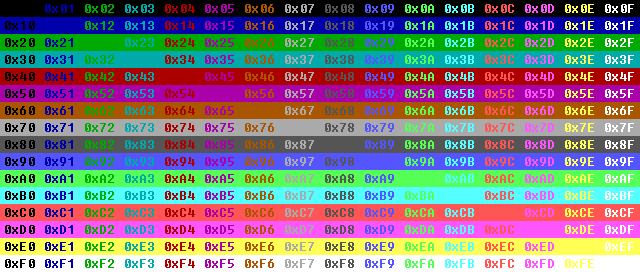
The default highlight color is 0x0A (light green on black).
- -viewport-offset <offset>
- Start displaying results from the specified zero-based offset.
- -viewport-count <num>
- Limit the number of results shown to <num>.
- -csv
- -efu
- -json
- -m3u
- -m3u8
- -tsv
- -txt
- Change the output format.
- -size-format <format>
- Set the size format.
The format can be one of the following:
| Value | Description |
|---|
| 0 | Auto |
| 1 | Bytes (default) |
| 2 | KB |
| 3 | MB |
- -date-format <format>
- Set the date format.
The format can be one of the following:
| Value | Description |
|---|
| 0 | Auto |
| 1 | ISO-8601 |
| 2 | FILETIME |
| 3 | ISO-8601 (UTC) |
| 4 | User Locale |
| 5 | ISO-8601 (full resolution) |
| 6 | ISO-8601 (UTC) (full resolution) |
- -filename-color <color>
- -name-color <color>
- -path-color <color>
- -extension-color <color>
- -size-color <color>
- -date-created-color <color>, -dc-color <color>
- -date-modified-color <color>, -dm-color <color>
- -date-accessed-color <color>, -da-color <color>
- -attributes-color <color>
- -file-list-filename-color <color>
- -run-count-color <color>
- -date-run-color <color>
- -date-recently-changed-color <color>, -rc-color <color>
- Set the specified column to the specified color.
Column colors can also be set with:
-set-column-colors <property-name=color>
Supports all properties.
Use a semicolon (;) to separate multiple property-name=color entries.
For example:
-set-column-colors length=11;width=12;height=13
The column color can be one of the following color codes (0x00 to 0xFF):
- -filename-width <width>
- -name-width <width>
- -path-width <width>
- -extension-width <width>
- -size-width <width>
- -date-created-width <width>, -dc-width <width>
- -date-modified-width <width>, -dm-width <width>
- -date-accessed-width <width>, -da-width <width>
- -attributes-width <width>
- -file-list-filename-width <width>
- -run-count-width <width>
- -date-run-width <width>
- -date-recently-changed-width <width>, -rc-width <width>
- Set the specified column to the specified minimum width.
The width can be from 0 to 65535.
Column widths can also be set with:
-set-column-widths <property-name=width>
Supports all properties.
Use a semicolon (;) to separate multiple property-name=width entries.
For example:
-set-column-widths length=5;width=3;height=3
- -no-digit-grouping
- Disable digit grouping (commas) for numbers.
- -double-quote
- Wrap paths and filenames with double quotes.
Journal options
- -j [filename-filter]
- -journal [filename-filter]
- Show index journal changes.
Any journal option below also shows journal changes.
Wildcards are supported in the filename-filter.
The entire final filename is matched case-insensitively.
Use a path separator (\) to match the full path.
- -get-journal-id
- Return the current journal ID.
- -get-journal-pos
- Return the current journal ID and next change ID.
- -action-filter <actions>
- Show only changes with the specified actions.
Use a semicolon (;) to separate multiple actions.
Actions can be one or more of the following:
- folder-create
- folder-delete
- folder-rename
- folder-move
- folder-modify
- file-create
- file-delete
- file-rename
- file-move
- file-modify
- -watch
- Return when a matching journal change is found and display the journal position.
- -from-journal-pos <journal-id> <change-id>
- -from-journal-id <journal-id>
- -from-change-id <change-id>
- Show changes starting from the specified position.
- -from-date <date>
- Show changes starting from the specified ISO-8601 date.
- -from-yesterday
- Show changes starting from the beginning of yesterday.
- -from-today
- Show changes starting from the beginning of today.
- -from-now
- Show changes starting from the current time.
- -to-journal-pos <journal-id> <change-id>
- -to-journal-id <journal-id>
- -to-change-id <change-id>
- Show changes up to the specified journal position (exclusive).
- -to-date <date>
- Show changes up to the specified ISO-8601 date (exclusive).
- -to-today
- Show changes up to the start of today (exclusive).
- -to-tomorrow
- Show changes up to the start of tomorrow (exclusive).
- -to-now
- Show changes up to the current time (exclusive).
- -after-journal-pos <journal-id> <change-id>
- Show changes after the specified journal ID and change ID.
- -changed-today
- Show changes from the start of today until the start of tomorrow.
Same as -from-today -to-tomorrow
- -changed-yesterday
- Show changes from the start of yesterday until the start of today.
Same as -from-yesterday -to-today
Export options
- -export-csv <filename>
- -export-efu <filename>
- -export-json <filename>
- -export-m3u <filename>
- -export-m3u8 <filename>
- -export-tsv <filename>
- -export-txt <filename>
- Export results to the specified file using the specified format.
- Do not output column headers for CSV, EFU, and TSV files.
- -no-folder-append-path-separator
- Do not append a trailing path separator (
\) to folder paths.
- -utf8-bom
- Write a UTF-8 byte order mark (BOM) at the start of the exported file.
General options
- -h
- -help
- Display this help.
- -argv
- Use native command argument passing when calling ES from PowerShell 7.3 or later.
- -instance <name>
- Connect to the Everything instance with the specified instance name.
- -ipc1
- -ipc2
- -ipc3
- Use IPC version 1, 2, or 3.
- -pause
- -more
- Pause after each page of output.
- -timeout <milliseconds>
- Wait up to the specified number of milliseconds for the Everything database to load before sending a query.
- -set-run-count <filename> <count>
- Set the run count for the specified filename.
- -inc-run-count <filename>
- Increment the run count for the specified filename by one.
- -get-run-count <filename>
- Display the run count for the specified filename.
- -get-result-count
- Display the result count for the specified search.
- -get-total-size
- Display the total result size for the specified search.
- -get-folder-size <filename>
- Display the total folder size for the specified folder.
- -save-settings
- Save settings to
%APPDATA%\voidtools\es\es.ini
- -clear-settings
- Delete
%APPDATA%\voidtools\es\es.ini
- -version
- Display the ES
major.minor.revision.build version and exit.
- -get-everything-version
- Display the Everything
major.minor.revision.build version and exit.
- -exit
- Exit Everything.
Returns after the Everything process closes.
- -save-db
- Save the Everything database to disk.
Returns after saving completes.
- -reindex
- Force Everything to reindex.
Returns after indexing completes.
- -no-result-error
- Set the exit code to
9 when no results are found.
Bookmarks and filters
ES can reference bookmarks and filters using
macros.
Exit codes
ES can return one of the following exit codes:
| Exit code | Description |
|---|
| 0 | No error.
The search was successful. |
| 1 | Failed to register window class. |
| 2 | Failed to create listening window. |
| 3 | Out of memory. |
| 4 | An additional command line option was expected, or a switch parameter was invalid. |
| 5 | Failed to create export output file. |
| 6 | Unknown switch. |
| 7 | Failed to send an Everything IPC query, or received an invalid IPC reply. |
| 8 | The Everything IPC window was not found.
Please make sure the Everything search client is running. |
| 9 | No results found when used with -no-result-error. |
Examples
Find files modified today:
es.exe dm:today
Show the 10 most recently modified files:
es.exe -sort dm -n 10
Find PDF files modified in the last 7 days:
es.exe *.pdf dm:7days
Find files larger than 1 GB:
es.exe size:">"1gb
Use
^> or
">" to prevent
> from being interpreted as output redirection.
Find files in the Downloads folder:
es.exe \downloads
Highlight the search terms
foo and
bar:
es.exe foo bar -highlight
Export all MP3 files to an Everything file list named mp3.efu:
es.exe *.mp3 -export-efu mp3.efu
Find the 20 largest MP4 files:
es.exe *.mp4 -sort size -n 20
Show the Size and Date Modified columns, set their colors, and save these as the default settings:
es.exe -size -dm -sizecolor 0x0d -dmcolor 0x0b -save-settings
See also