Customizing
Customize the appearance, layout, and behavior of Everything.
View
Fonts and colors
Change the default search and search settings
Appearance
Layout
Formatting
External file manager
User settings
See also
View
Customize the result list appearance, including enabling alternate row colors and custom size formatting.
To customize view options:
- In Everything, from the Tools menu, click Options.
- Click the View tab on the left.
For more information, see
View.
Fonts and colors
Customize themes, fonts, font styles, and colors for Everything controls.
To customize fonts and colors:
- In Everything, from the Tools menu, click Options.
- Click the Fonts and Colors tab on the left.
For more information, see
Fonts and Colors.
Change the default search and search settings
Everything remembers your last search settings by default.
To set the default search and search settings:
- In Everything, from the Tools menu, click Options.
- Click the Home tab on the left.
- Set the desired search, search settings, and view options.
For more information, see
home.
Appearance
Customize the icons, themes, and colors of Everything.
To change the Everything icon:
- Copy your custom icon file to
%APPDATA%\Everything\Everything.ico If Store settings and data in %APPDATA%\Everything is disabled, copy your custom icon file to Everything.ico in the same location as your Everything.exe
- In Everything, from the File menu, click Exit.
- Restart Everything.
Download the Everything Icon Pack:
Everything-Icons.zip
To set a custom Everything tray icon:
- In Everything, from the Tools menu, click Options.
- Click the Advanced tab on the left.
- To the right of show settings containing, search for:
icon
- Select tray_icon_filename and click Edit....
- Select a custom ICO file and click Open.
- Click OK.
To change the Everything Taskbar button icon:
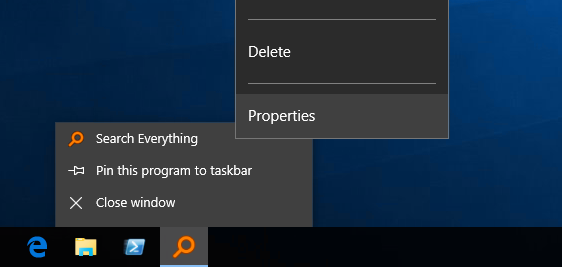
- Right-click the Everything taskbar button.
- Right-click Everything.
- Click Properties.
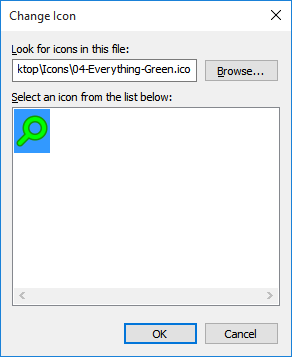
- Click Change Icon.
- Click Browse...
- Select a custom ICO file and click Open.
- Click OK to change the icon.
- Click OK.
- In Everything, from the File menu, click Exit.
- Restart Everything.
To show a border around each selected item:
- In Everything, from the Tools menu, click Options.
- Click the Advanced tab on the left.
- To the right of show settings containing, search for:
selected
- Select selected_border.
- Set the value to true.
- To the right of show settings containing, search for:
margin
- Select listview_item_margin_top.
- Set the value to:
1
- Click OK.
To customize the result list selection rectangle:
- In Everything, from the Tools menu, click Options.
- Click the Advanced tab on the left.
- To the right of show settings containing, search for:
rectangle
- Select translucent_selection_rectangle_alpha.
- Set the transparency value from
0 (transparent) to 255 (opaque).
- Select translucent_selection_rectangle_background_color (or translucent_selection_rectangle_background_dark_color for the dark theme).
- Set the background color.
- Select translucent_selection_rectangle_border_color (or translucent_selection_rectangle_border_dark_color for the dark theme).
- Set the border color.
- Click OK.
To customize the system highlight color, including the selection color in the search box:
- In Everything, from the Tools menu, click Options.
- Click the Advanced tab on the left.
- To the right of show settings containing, search for:
system
- Select system_highlight_color.
- Set the system highlight background color.
- Select system_highlighttext_color.
- Set the system highlight text color.
- Click OK.
- In Everything, from the File menu, click Exit.
- Restart Everything.
To use the Everything menu theme, which supports scaling:
- In Everything, from the Tools menu, click Options.
- Click the Advanced tab on the left.
- To the right of show settings containing, search for:
theme
- Select menu_theme.
- Set the value to Everything.
- Click OK.
To use the Everything scrollbar theme, which supports scaling:
- In Everything, from the Tools menu, click Options.
- Click the Advanced tab on the left.
- To the right of show settings containing, search for:
theme
- Select scrollbar_theme.
- Set the value to Everything.
- Click OK.
To use the Everything status bar theme, which supports buttons for quickly switching between thumbnail and details views:
- In Everything, from the Tools menu, click Options.
- Click the Advanced tab on the left.
- To the right of show settings containing, search for:
theme
- Select statusbar_theme.
- Set the value to Everything.
- Click OK.
Layout
Customize the layout of headers, thumbnails, and other elements of Everything.
To show the column header in thumbnail view:
- In Everything, from the Tools menu, click Options.
- Click the Advanced tab on the left.
- To the right of show settings containing, search for:
header
- Select thumbnail_view_header.
- Set the value to true.
- Click OK.
To always show commonly used properties in the header context menu:
- In Everything, from the Tools menu, click Options.
- Click the Advanced tab on the left.
- To the right of show settings containing, search for:
header
- Select header_context_menu_add_properties.
- Set the value to a semicolon (
;) delimited list of properties. For example:
length;width;height
- Click OK.
To use widescreen thumbnails:
- In Everything, from the Tools menu, click Options.
- Click the Advanced tab on the left.
- To the right of show settings containing, search for:
thumbnail
- Select thumbnail_aspect_ratio_mul.
- Set the value to:
16
- Select thumbnail_aspect_ratio_div.
- Set the value to:
9
- Click OK.
To always show the beginning and end of paths with an ellipsis in the middle:
- In Everything, from the Tools menu, click Options.
- Click the Advanced tab on the left.
- To the right of show settings containing, search for:
path
- Select path_ellipsis.
- Set the value to true.
- Click OK.
Customize date, time, window title, and status bar formatting.
To set a custom date format in Everything:
- In Everything, from the Tools menu, click Options.
- Click the Advanced tab on the left.
- To the right of show settings containing, search for:
format
- Select date_format.
- Set the value to the custom date format.
Date format can contain zero or more of the following codes:
| Code | Description |
|---|
d | Day of month as digits with no leading zero for single-digit days. |
dd | Day of month as digits with leading zero for single-digit days. |
ddd | Day of week as a three-letter abbreviation. |
dddd | Day of week as its full name. |
M | Month as digits with no leading zero for single-digit months. |
MM | Month as digits with leading zero for single-digit months. |
MMM | Month as a three-letter abbreviation. |
MMMM | Month as its full name. |
y | Year as last two digits, but with no leading zero for years less than 10. |
yy | Year as last two digits, but with leading zero for years less than 10. |
yyyy | Year represented by full four digits. |
gg | Period/era string. |
For example:
yyyy-MM-dd
- Click OK.
To use a custom time format in Everything:
- In Everything, from the Tools menu, click Options.
- Click the Advanced tab on the left.
- To the right of show settings containing, search for:
format
- Select time_format.
- Set the value to the custom time format.
Time format can contain zero or more of the following codes:
| Code | Description |
|---|
h | Hours with no leading zero for single-digit hours; 12-hour clock. |
hh | Hours with leading zero for single-digit hours; 12-hour clock. |
H | Hours with no leading zero for single-digit hours; 24-hour clock. |
HH | Hours with leading zero for single-digit hours; 24-hour clock. |
m | Minutes with no leading zero for single-digit minutes. |
mm | Minutes with leading zero for single-digit minutes. |
s | Seconds with no leading zero for single-digit seconds. |
ss | Seconds with leading zero for single-digit seconds. |
t | One character time-marker string, such as A or P. |
tt | Multicharacter time-marker string, such as AM or PM. |
SSS | Milliseconds with leading zeros.
Must be the last part of the format. |
SSSSSSS | Full-resolution fractional seconds with leading zeros.
Must be the last part of the format. |
For example:
HH:mm:ss.SSSSSSS
- Click OK.
To customize the Everything search window caption:
- In Everything, from the Tools menu, click Options.
- Click the Advanced tab on the left.
- To the right of show settings containing, search for:
format
- Select window_title_format.
- Set the value to the custom format.
The custom format can include any of the following:
| Variable | Description |
|---|
$s | Current search |
$t | Everything |
$v | Version |
$i | Instance name |
- Use the following syntax to optionally display text:
| Syntax | Description |
|---|
$x?{text} | Display text if $x is not empty. |
For example:
| Format | Search | Title |
|---|
$s?{$s - }Everything$i?{ ($i)} | apples | apples - Everything |
$s?{$s - }Everything$i?{ ($i)} | | Everything |
- Click OK.
To set the status bar format when no items are selected:
- In Everything, from the Tools menu, click Options.
- Click the Advanced tab on the left.
- To the right of show settings containing, search for:
format
- Select statusbar_format.
- Set the status bar format.
The status bar format can include any of the following codes:
| Code | Description |
|---|
$o | Total result count |
$y | Total result size |
$$ | Literal $ |
For example:
$o items
- Click OK.
To set the status bar format when a single item is selected:
- In Everything, from the Tools menu, click Options.
- Click the Advanced tab on the left.
- To the right of show settings containing, search for:
format
- Select statusbar_selected_item_format.
- Set the status bar format.
The status bar format can include any of the following codes:
| Code | Description |
|---|
$f | Full path |
$n | Name |
$p | Path |
$s | Size |
$e | Extension |
$t | Type |
$m | Date modified |
$c | Date created |
$a | Date accessed |
$b | Attributes |
$d | Date recently changed |
$r | Run count |
$u | Date run |
$l | File list filename |
$o | Total result count |
$y | Total result size |
$$ | Literal $ |
For example:
$o items | Size: $s | Date Modified: $m | Path: $p
- Click OK.
To set the status bar format when multiple items are selected:
- In Everything, from the Tools menu, click Options.
- Click the Advanced tab on the left.
- To the right of show settings containing, search for:
format
- Select statusbar_selection_format.
- Set the status bar format.
The status bar format can include any of the following codes:
| Code | Description |
|---|
$o | Total result count |
$x | Total selection count |
$y | Total result size |
$z | Total selection size |
$$ | Literal $ |
For example:
$o items | $x items selected
- Click OK.
External file manager
Everything opens folders and paths in your default file manager.
To open folders in an external file manager:
To open paths in an external file manager:
User settings
Override Everything settings on every startup with a
user.ini
To create a
user.ini:
- Exit Everything.
- Create a file named
user.ini in %APPDATA%\Everything If Store settings and data in %APPDATA%\Everything is disabled, create the user.ini in the same location as your Everything.exe
- Add the
[Everything] section to the start of the file.
- Add the settings you want to override.
- Start Everything.
For example:
[Everything]
window_wide=1024
window_high=720
size_format=1
filters_visible=1
session_store_restore_on_demand=1
See also