ETP Server
The ETP (Everything Transfer Protocol) Server allows Everything clients and FTP clients to search and access files indexed by Everything.
ETP is FTP with the Everything extension.
Standard FTP clients can connect to an ETP server and browse or download files without supporting the Everything extension.
The ETP server only provides a limited window of search results.
ETP has been superseded by the
Everything Server, which does not have this limitation.
Download
Start the ETP/FTP server
Connect to an ETP server
ETP link types
Change username and password
Different indexes
Share a folder as a drive
Options
Disable file downloading
Security
FTP SITE EVERYTHING extension
ETP/FTP welcome message
ETP client path rewriting
Run the ETP server as a service
Automatically connect to an ETP server
Troubleshooting
See also
Download
The ETP/FTP server is available as a separate plugin for Everything.
ETP/FTP Server Plugin
Everything 1.4 includes the ETP/FTP server by default.
Start the ETP/FTP server
The ETP/FTP server is disabled by default.
To start the ETP/FTP server:
- On the server, in Everything, from the Tools menu, click Options.
- Click the ETP/FTP Server tab on the left.
- Check Enable ETP/FTP server.
- Optionally set a username and password.
- Click OK.
- When prompted, allow Everything through the Windows Firewall.
ETP works best when each indexed drive is shared using its drive letter.
For example, share the C: drive as:
C
This is required when using the default
\\server\C link type.
To use custom shares, see
ETP client path rewriting.
To share a single folder instead of a whole drive, see
Share a folder as a drive.
Connect to an ETP server
To connect to an ETP server:
- On the client, in Everything, from the Tools menu, click Connect to ETP server....
- Set the host to the name or IP address of the server.
- Set the username. Leave empty if no username is set on the server.
- Set the password. Leave empty if no password is set on the server.
- Click OK.
- Select a link type.
To connect automatically when Everything starts, see
Automatically connect to an ETP server.
ETP link types
ETP link types determine how the Everything client accesses files on the ETP server.
Searching and browsing work the same way for every link type.
The link type only affects opening, copying and previewing a result.
| Link type | Description |
|---|
C: | Use the paths returned by the ETP server without modification.
Useful when a SUBST drive on the server corresponds to a mapped network drive on the client. |
\\Server\C | Use Windows shares.
This is the default link type.
The corresponding shares do not exist by default and must be created on the server. |
\\Server\C$ | Use the default Windows administrative drive shares.
Requires administrative credentials. |
ftp://host/C: | Use FTP links.
Files are retrieved through the ETP/FTP server itself, so no Windows share is required. |
To rewrite server paths to shares that do not match the drive letter, see
ETP client path rewriting.
Change username and password
To change the ETP/FTP server username and password:
- In Everything, from the Tools menu, click Options.
- Click the ETP/FTP Server tab on the left.
- Set a new Username. Leave empty to allow any username.
- Set a new Password. Leave empty to allow any password.
- Click OK.
The username and password are sent as raw text.
For more information, see
Security.
Different indexes
The ETP server can run in a separate Everything instance with its own index.
For example, you can run Everything normally with access to all indexed volumes, while running a separate Everything instance for the ETP server with access to only selected NTFS volumes.
For more information, see
Multiple Instances.
Share a folder as a drive
ETP works best when each indexed drive is shared using its drive letter.
To host an ETP/FTP server for a single folder, use SUBST to assign the folder a drive letter and then share the folder.
For example:
- On the server, map
H: to C:\Media.
- Share
C:\Media as \\server\Media.
- On the client, map
H: to \\server\Media.
To map
H: to
C:\Media on the server:
- On the server, from a command prompt, run:
This assigns the C:\Media folder to the H: drive.
SUBST drives do not persist across a restart and are only visible to the session that created them.
To keep the ETP server working after a restart, recreate the SUBST drive at startup.
Set up an index to include only the H: drive:
- On the server, in Everything, from the Tools menu, click Options.
- Click the NTFS tab on the left.
- Uncheck Automatically include new fixed volumes.
- Uncheck Automatically include new removable volumes.
- Uncheck Automatically remove offline volumes.
- For each NTFS volume except the H: drive:
- Uncheck Include in database.
- Select the H: drive:
- Check Include in database.
- Click OK.
Share
C:\Media:
- On the server, in Windows Explorer, right-click the C:\Media folder and click Properties.
- Click the Sharing tab.
- Click Share....
- Type in:
everyone and click Add....
- Click Share.
- Click Done.
- Click Close.
Map
H: to the
\\server\Media share on the client:
- On the client, in Windows Explorer, right-click This PC and click Map network drive....
- Set the drive to:
H:
- Set the folder to:
\\server\Media
- Click Finish.
Use the same drive letter on the server and client to make searching and opening ETP results seamless.
Connect to the ETP/FTP server using the
C: link type.
This uses the H: path returned by the ETP server, which the client accesses through its H: drive mapping.
Options
Contains settings for configuring the ETP/FTP server.
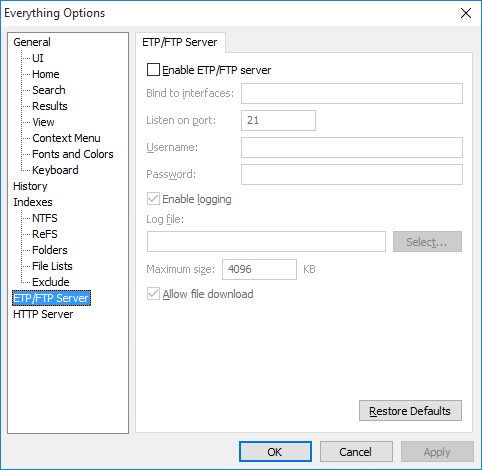
To change the ETP/FTP server settings:
- In Everything, from the Tools menu, click Options.
- Click the ETP/FTP Server tab on the left.
- Enable ETP/FTP server
- Enable the ETP/FTP server.
- Bind to interfaces
- Bind the listening socket to the specified interfaces.
Leave empty to bind to all available network interfaces.
Use 127.0.0.1 to restrict access strictly to the local machine.
- Listen on port
- Set the listening socket port.
The ETP/FTP client must connect using the same port.
- Username
- The ETP/FTP server username.
Leave empty to ignore the username.
The username is sent as raw text.
- Password
- The ETP/FTP server password.
Leave empty to ignore the password.
The password is sent as raw text.
- Enable logging
- Log all ETP/FTP events to a log file.
- Log file
- The filename of the log file.
Click Select to choose the log filename.
- Maximum size
- The maximum size of the log file in KB.
The log file is trimmed from the beginning when it exceeds this size.
- Allow file download
- Allow files to be downloaded from the ETP/FTP server.
Disable to allow browsing only.
Disable file downloading
To prevent files from being downloaded from the ETP/FTP server:
- In Everything, from the Tools menu, click Options.
- Click the ETP/FTP Server tab on the left.
- Uncheck Allow file download.
- Click OK.
Clients can still search and browse the Everything index.
File names, paths, sizes and dates remain visible.
Security
Consider the following before making an ETP server reachable from an untrusted network.
Any client that can authenticate can search every file and folder in your Everything index.
Files can also be downloaded unless file downloading is disabled.
To disable file downloading, see
Disable file downloading.
The username and password are sent as raw text and are not encrypted.
Anyone able to observe the connection can recover them.
The ETP server does not support TLS.
Leaving the username or password empty allows any username or any password.
An ETP server with both left empty accepts any client that can reach the port.
To reduce exposure:
- Use Bind to interfaces to limit the server to a specific interface, or to 127.0.0.1 for local connections only.
- Restrict access to the listening port with the Windows Firewall.
- Limit the index to only the files and folders you intend to share. See Different indexes.
- Uncheck Allow file download if clients only need to search and browse.
- Do not expose an ETP server directly to the internet. Use a VPN or an SSH tunnel instead.
FTP SITE EVERYTHING extension
The ETP server extends FTP with the
SITE EVERYTHING extension.
Use the FTP
FEAT command to check if the server supports the
EVERYTHING extension.
A search is performed by setting the search options, then executing the search with
SITE EVERYTHING QUERY.
Options persist for the connection, so only the options that change need to be set before each query.
Where a command takes
x, a nonzero value enables the option and zero disables it.
Search Options
| Command | Description |
|---|
SITE EVERYTHING SEARCH text | Set the search text. |
SITE EVERYTHING CASE x | Match case when x is nonzero. |
SITE EVERYTHING WHOLE_WORD x | Match whole words when x is nonzero. |
SITE EVERYTHING PATH x | Match full paths when x is nonzero. |
SITE EVERYTHING DIACRITICS x | Match diacritics when x is nonzero. |
SITE EVERYTHING PREFIX x | Match prefix when x is nonzero. |
SITE EVERYTHING SUFFIX x | Match suffix when x is nonzero. |
SITE EVERYTHING IGNORE_PUNCTUATION x | Ignore punctuation in filenames when x is nonzero. |
SITE EVERYTHING IGNORE_WHITESPACE x | Ignore white-space in filenames when x is nonzero. |
SITE EVERYTHING REGEX x | Enable regular expressions when x is nonzero. |
SITE EVERYTHING HIDE_EMPTY_SEARCH_RESULTS x | Hide empty search results when x is nonzero. |
Secondary search options
The secondary search is applied in addition to the search set with
SITE EVERYTHING SEARCH.
| Command | Description |
|---|
SITE EVERYTHING FILTER_SEARCH text | Set the secondary search text. |
SITE EVERYTHING FILTER_CASE x | Match case in the secondary search when x is nonzero. |
SITE EVERYTHING FILTER_WHOLE_WORD x | Match whole words in the secondary search when x is nonzero. |
SITE EVERYTHING FILTER_PATH x | Match full paths in the secondary search when x is nonzero. |
SITE EVERYTHING FILTER_DIACRITICS x | Match diacritics in the secondary search when x is nonzero. |
SITE EVERYTHING FILTER_PREFIX x | Match prefix in the secondary search when x is nonzero. |
SITE EVERYTHING FILTER_SUFFIX x | Match suffix in the secondary search when x is nonzero. |
SITE EVERYTHING FILTER_IGNORE_PUNCTUATION x | Ignore punctuation in filenames in the secondary search when x is nonzero. |
SITE EVERYTHING FILTER_IGNORE_WHITESPACE x | Ignore white-space in filenames in the secondary search when x is nonzero. |
SITE EVERYTHING FILTER_REGEX x | Enable regular expressions in the secondary search when x is nonzero. |
Result options
| Command | Description |
|---|
SITE EVERYTHING SORT x | Set the result sort order.
x is one of the sort names. |
SITE EVERYTHING OFFSET n | Skip the first n results. |
SITE EVERYTHING COUNT x | Return no more than x results. |
SITE EVERYTHING SIZE_COLUMN x | Include the size when x is nonzero. |
SITE EVERYTHING DATE_CREATED_COLUMN x | Include the date created when x is nonzero. |
SITE EVERYTHING DATE_MODIFIED_COLUMN x | Include the date modified when x is nonzero. |
SITE EVERYTHING ATTRIBUTES_COLUMN x | Include the attributes when x is nonzero. |
SITE EVERYTHING PATH_COLUMN x | Include the path when x is nonzero. |
SITE EVERYTHING FILE_LIST_FILENAME_COLUMN x | Include the file list filename when x is nonzero. |
Execute the search
| Command | Description |
|---|
SITE EVERYTHING QUERY | Execute the search with the specified options. |
Use
SITE EVERYTHING OFFSET and
SITE EVERYTHING COUNT to retrieve results a window at a time.
For example, to find the first 100 items containing
abc and include the path:
SITE EVERYTHING SEARCH abc
SITE EVERYTHING COUNT 100
SITE EVERYTHING PATH_COLUMN 1
SITE EVERYTHING QUERY
To retrieve the next 100 results:
SITE EVERYTHING OFFSET 100
SITE EVERYTHING QUERY
Sort names
NAME_ASCENDING
NAME_DESCENDING
PATH_ASCENDING
PATH_DESCENDING
SIZE_ASCENDING
SIZE_DESCENDING
EXTENSION_ASCENDING
EXTENSION_DESCENDING
DATE_CREATED_ASCENDING
DATE_CREATED_DESCENDING
DATE_MODIFIED_ASCENDING
DATE_MODIFIED_DESCENDING
ATTRIBUTES_ASCENDING
ATTRIBUTES_DESCENDING
FILE_LIST_FILENAME_ASCENDING
FILE_LIST_FILENAME_DESCENDING
ETP/FTP welcome message
Customize the ETP/FTP welcome message.
To set the welcome message:
- On the server, in Everything, from the File menu, click Exit.
- Open your Plugins.ini.
- Under the ETP server plugin section ([etp_server32.dll], [etp_server64.dll], [etp_serverARM.dll], or [etp_serverARM64.dll]), set etp_server_welcome_message.
Leave empty to use the default: Welcome to Everything ETP/FTP
The welcome message can contain any of the following:
| Code | Description |
|---|
%n | New line |
%v | Version |
%% | Literal % |
- Save the file.
- Restart Everything.
ETP client path rewriting
ETP clients can rewrite ETP server paths so they can be accessed using different shares.
To rewrite the paths on the ETP client:
Run the ETP server as a service
Use the Everything client service to run the ETP server without having a user logged in.
To run the ETP server as an Everything client service:
SUBST drives created in a user session are not visible to the client service.
Avoid
SUBST drives when running the ETP server as a service.
To make changes to the ETP server:
To uninstall the Everything client service:
Automatically connect to an ETP server
To automatically connect to an ETP server when starting Everything:
- On the client, in Everything, from the Tools menu, click Options.
- Click the Home tab on the left.
- Change Index to: ETP server.
- Set the ETP server to:
username:password@host:port The username, password and port are optional.
- Set the desired link type.
- Click OK.
To connect to an ETP server from the command line, use the
-connect command line option.
For example:
Everything.exe -connect username:password@server:port
The username, password and port are optional.
Troubleshooting
- Unable to start ETP server: bind failed 10048
- The ETP server port is already in use.
Make sure no other FTP server or application is using the same port, or change the ETP server port.
To change the ETP server port:
- On the server, in Everything, from the Tools menu, click Options.
- Click the ETP/FTP Server tab on the left.
- Change the Listen on port to:
2121
- Click OK.
Use the same port when connecting to the ETP server.
- The client cannot connect to the server
- Check that the ETP server is enabled on the server.
Check that the client is connecting to the same port the server is listening on.
Check Bind to interfaces is empty, or set to an interface the client can reach.
Check that the Windows Firewall on the server allows Everything on the listening port.
- Results are found, but files cannot be opened
- The link type does not match how the files are shared.
Check that the required share exists on the server, or use ETP client path rewriting.
- No results are returned
- Check that the files and folders you expect are included in the index on the server.
If the ETP server runs as a client service, check that the service is using the expected settings and index.
See also